|
Payments
To record payments received from Debtors:
1. Click the Add button in the transaction Entry Inquiry screen. The following screen is loaded.
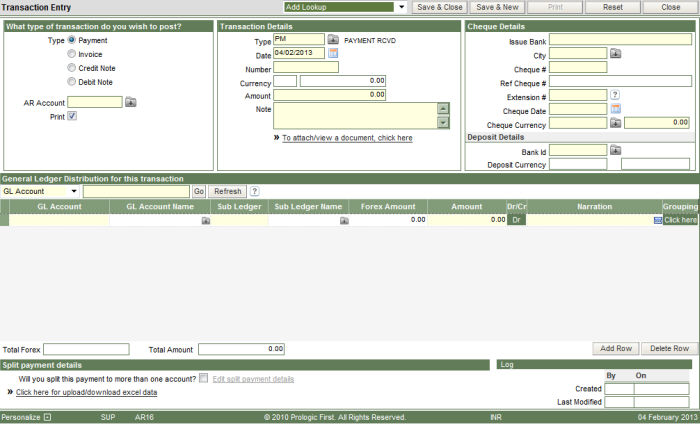
2. Select the option of Payment for the type of transaction.
3. Enter the AR account for which you are recording the payment received.
4. The option of Print is ticked by default, because of which the system will automatically print the receipt voucher on saving the transaction into the database.
5. The transaction type displayed will be PM, as defined in the AR Control screen for payment received transactions.
6. The date, i.e. the transaction date is displayed as the current business date by default. The date can be any other date prior to the business date for recoding the payment transaction.
7. The number is the transaction number which will be generated by the system automatically on saving the record into the database.
8. The currency will be displayed by the system, if there is any foreign currency defined for the AR account in the Create/Modify AR account screen.
9. Enter the amount being received as payment from the debtor.
10.Type in any Note/Particulars for the transaction.
11. To attach any extra document to the payment transaction, click on the link.
12. Enter the details of the cheque received from the debtor. If it is bank transfer then, the transfer details need to be entered.
13. The cheque currency and the amount are required to be entered only if the cheque is in a foreign currency.
14. The Deposit Details is the bank id of the hotel in which the cheque received from the debtor will be deposited.
15. The moment the bank id is entered, the system will display the Bank GL account code in the lower half of the screen that should be debited because of the payment received.
16. In case there are more GL accounts that are affected because of the transaction, the same can be entered by clicking the Add Row button at the bottom of the screen.
17. The payment transaction may or may not be split into more than one AR account. To split, tick the option – Will you split this payment to more than one account. On doing so a small window will pop up at the bottom, in which the AR accounts can be entered for splitting the transaction.
18. Click the Save & Close button to store the transaction into the database and exit from the screen, or Save & new to continue recording more transactions.
19. The payment receipt is also printed.
Recording advance payments from debtors, with VAT
Advance payments from Debtors are recorded as payment receipts. These may or may not attract taxes such as VAT. If, there are taxes applicable on advances received, the same can be recorded in the following way.
The prerequisites for the system to understand and treat such transactions as advance payments with applicable VAT, are:
Advance controls:
o GSTINW - GST Installed – Y
o IGST - N
o ARGSIA – The GL Account code for Advance Receipt IGST Reversal
Transaction Type of AR Parameters screen:
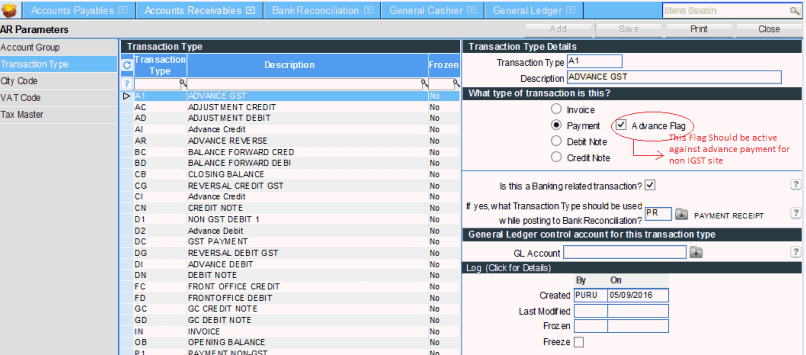
The transaction type defined for Advance receipts, should have the Advance flag ticked.
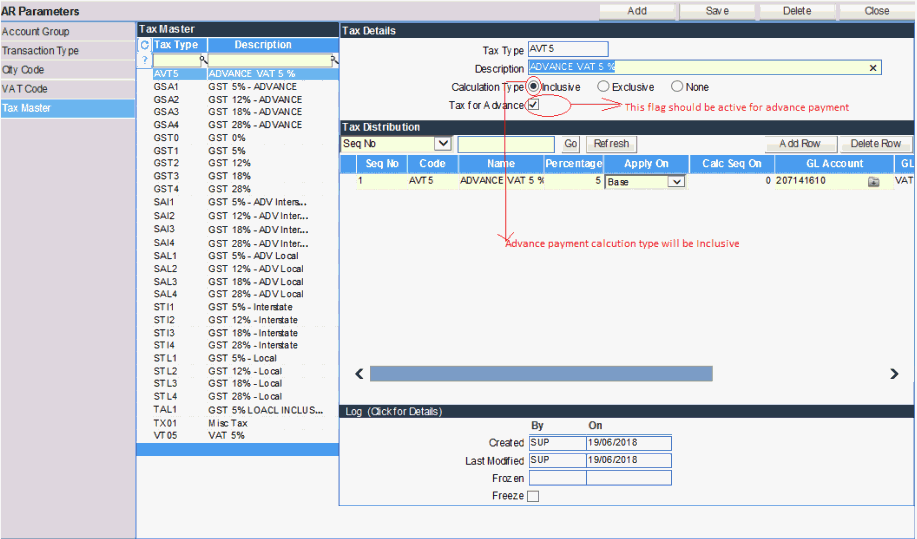
In the Tax master section, the tax codes should be marked as - Tax for Advance.
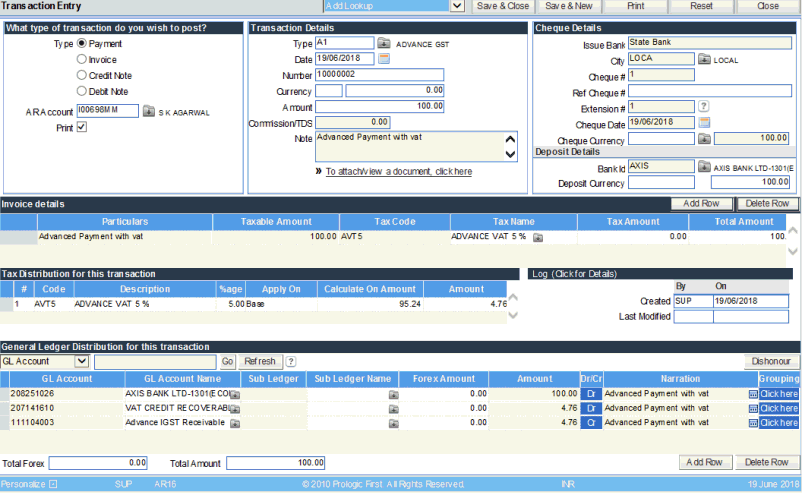
Once all the above are defined, while posting Advance transaction,
For Advance with TDS/ Commission
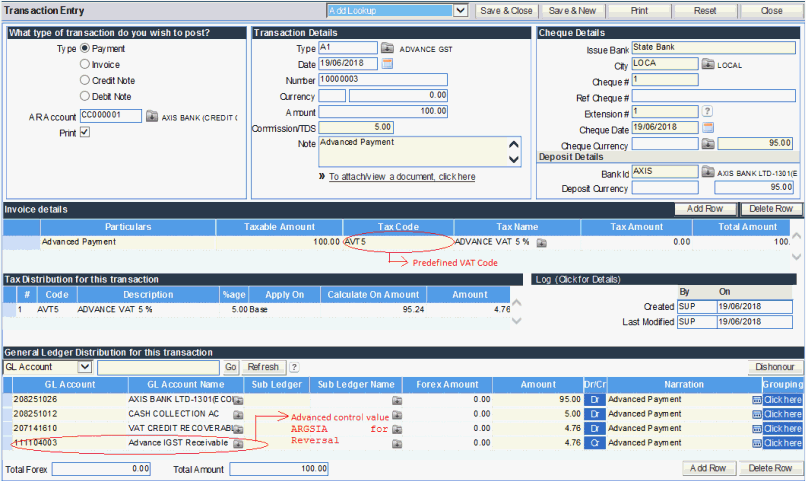
The GL Distribution will automatically display the reverse GL account code defined in the advance control - ARGSIA
For advance without TDS/Commission